
Guide to customer segmentation by purchase categories
To make your communication with customers more relevant, the first thing to do is to base it on the product categories they prefer, for example the ones they chose in their last purchase.
The more general your e-commerce store, the truer this is: if you sell very different products, such as bikes and TVs, knowing the category of the last order becomes vital to build win-back campaigns that actually prompt a repeat purchase.
Segmentation by category: which fields you need
By default, the main e-commerce platforms don't expose purchased-category data in their APIs.
To solve this we built a set of plugins that extend the API data sent to Rfmcube:
- Plugin for Magento 1: https://github.com/rfmcube/rfmcube-magento1-customapi
- Plugin for Magento 2: https://github.com/rfmcube/rfmcube-magento2-customapi
- Plugin for PrestaShop: https://github.com/rfmcube/rfmcube-prestashop-customapi
- WooCommerce: no plugin needed
- Shopify: no plugin needed
Once the plugin is active, go to Settings > Sync configuration > Reinitialize connector to retrieve the category data from every order in your history.
Now, back in Settings > Additional fields, the order fields include a drop-down with the purchased-category data.
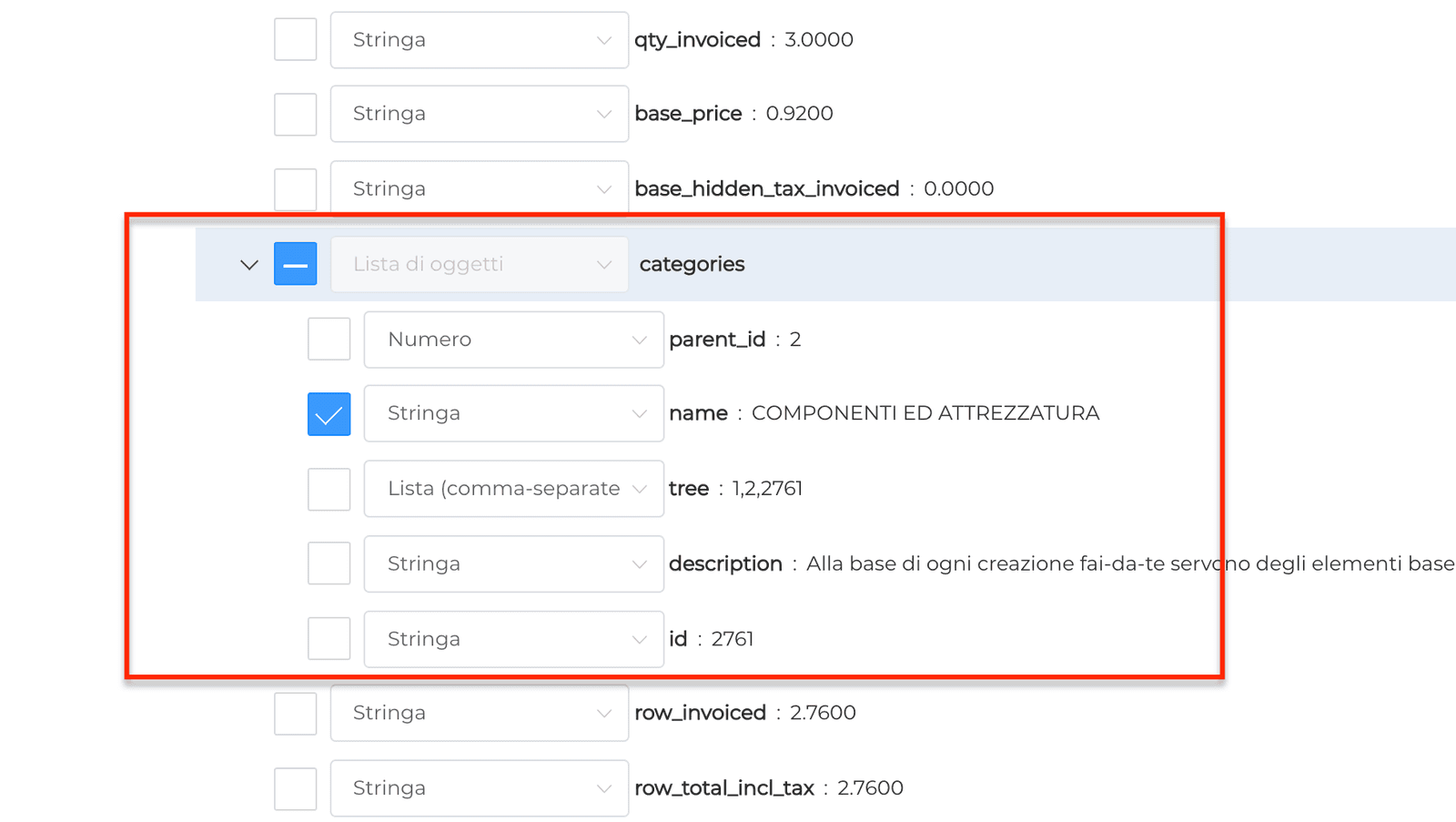
The fields you can select are:
- parent_id: the parent category, one level up (e.g. if the category path is Clothing > Men > Jeans, the category selected is "Men")
- name: the name of the lowest-level category purchased (in Clothing > Men > Jeans, it selects "Jeans")
- tree: the most versatile field of all: it lets you select any level of the purchased category
- description: to select keywords in the category description
- id: the ID of the lowest-level category purchased (same as name)
Once you've selected the field, click Save to start importing the data.
Segmentation by category: building the segments
Go back to Segments management to start building your segments on categories.
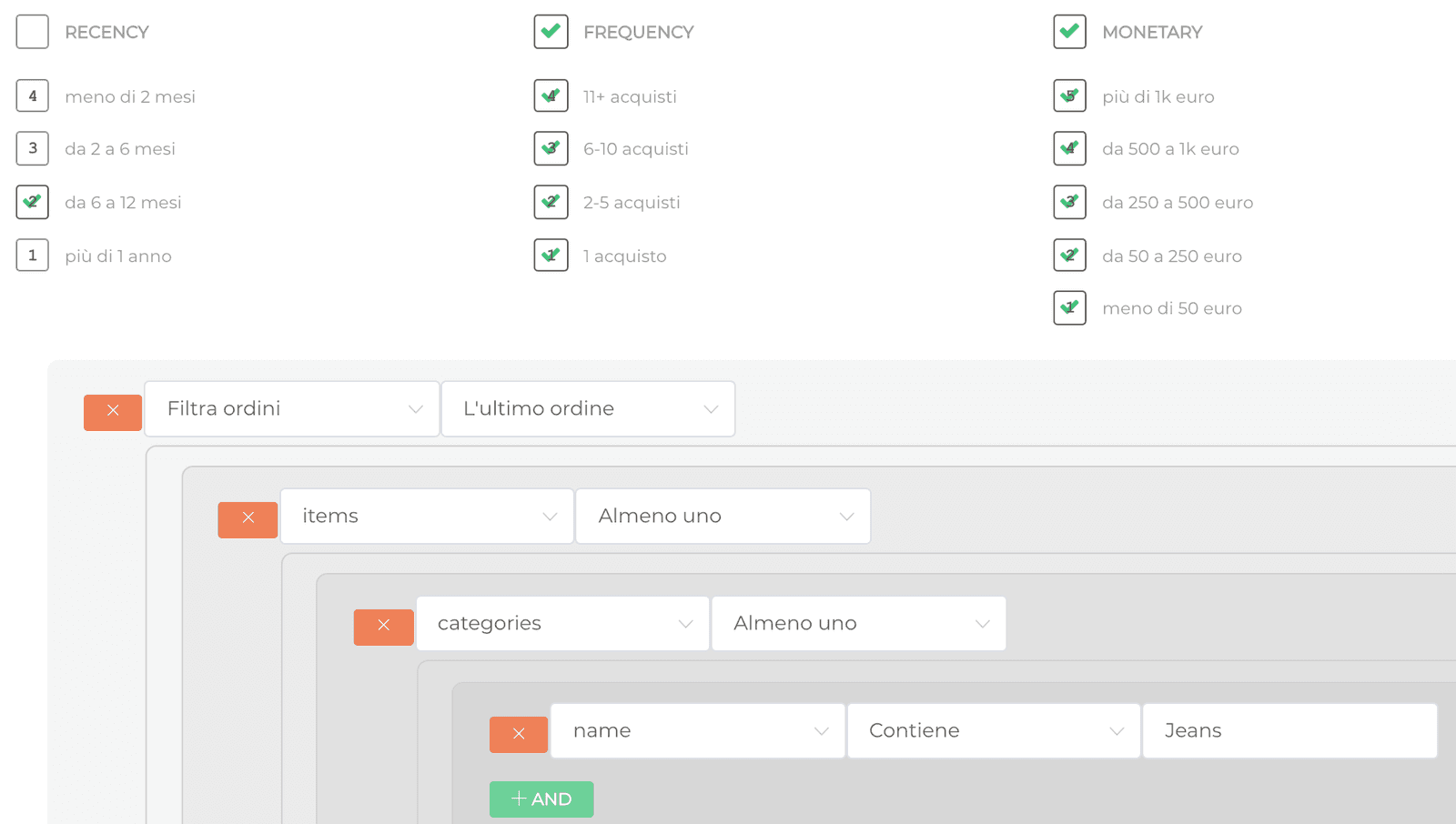
If needed, select one or more RFM scores, then follow Add advanced filter > Filter orders > Items > Categories.
"The last order contains at least 1 product of category x"
In the image below, the segment selects all the customers who bought at least one pair of jeans 6 to 12 months ago:
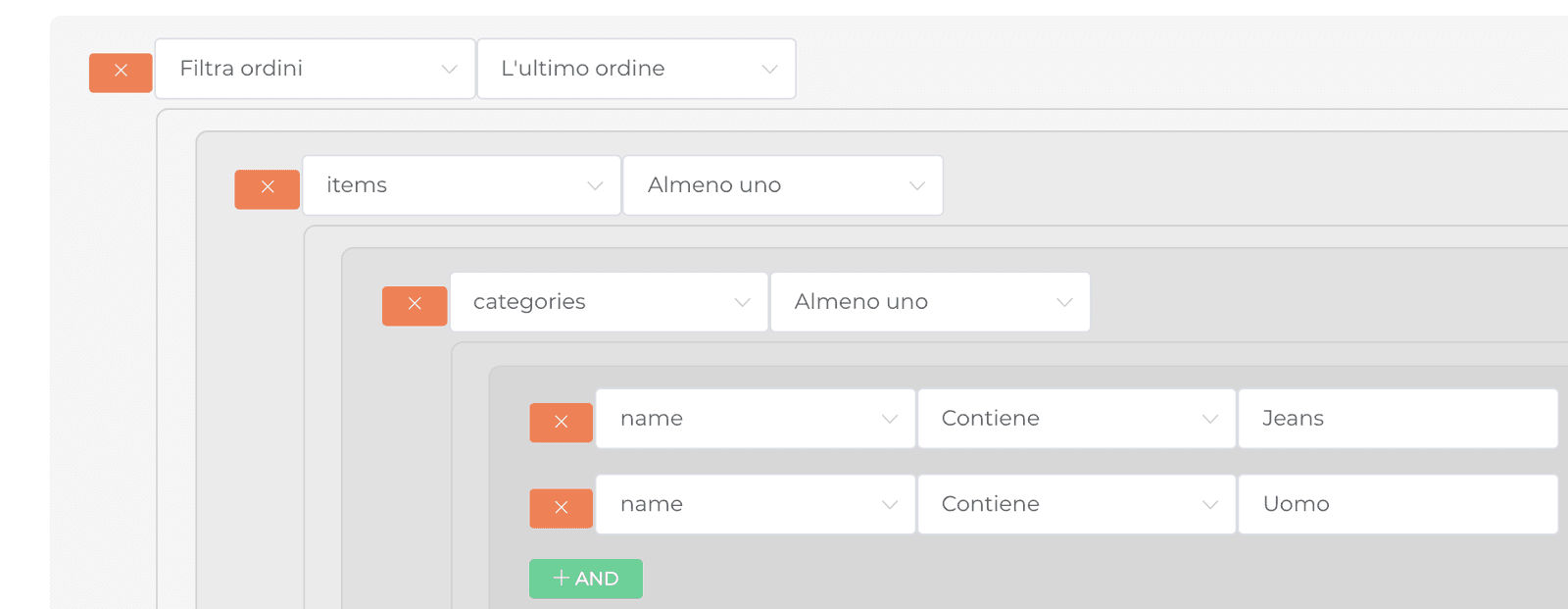
The Category field can be combined with the AND connector when a product belongs to several categories, for example a product in both the "Jeans" and the "Men" categories, with no hierarchy between them:
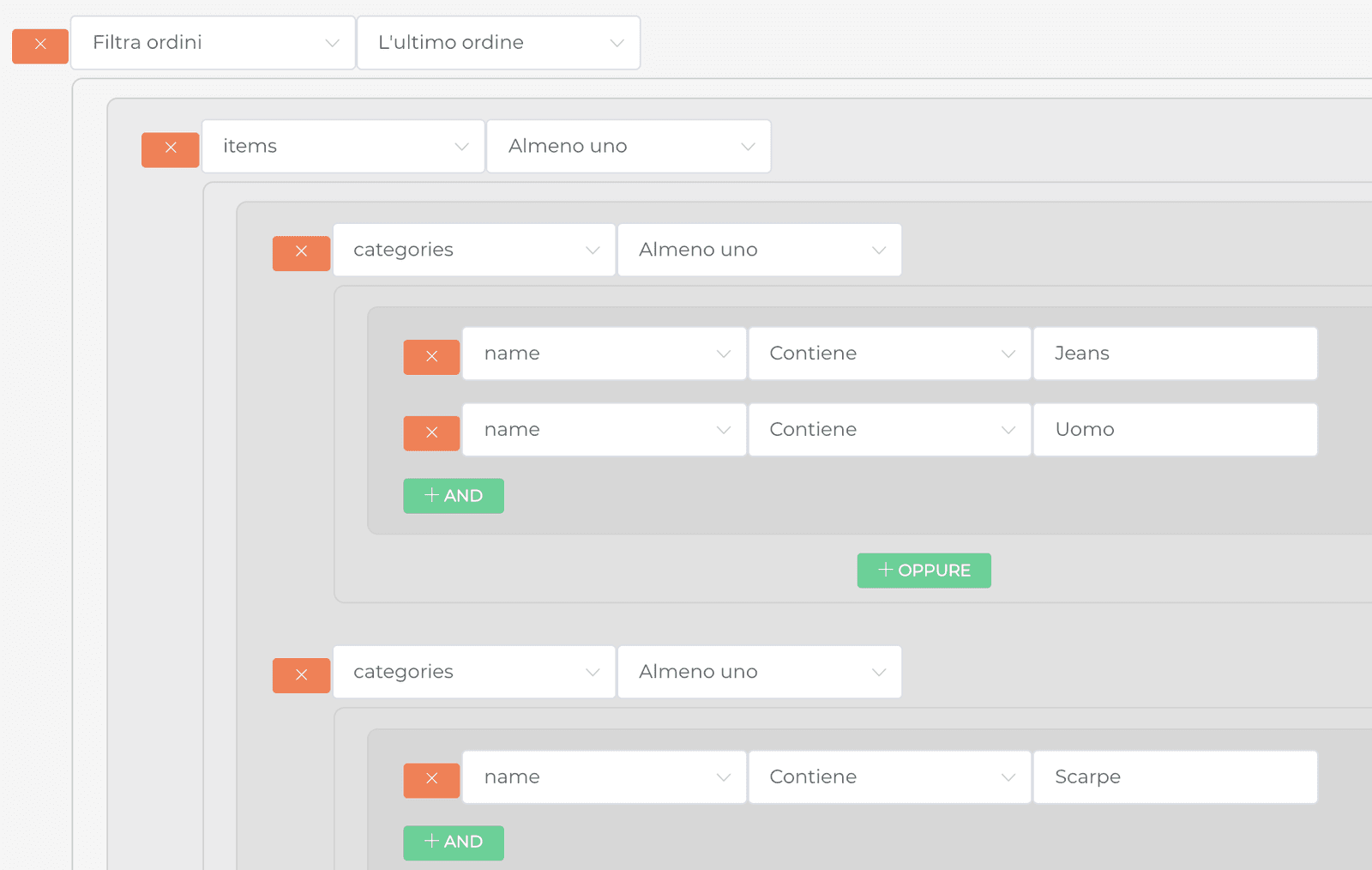
If you need the categories of 2 different products in the last order, select the OR connector and rebuild the category path.
In the image below, the segment selects the customers whose last order contains both a men's jeans product and a shoes product:
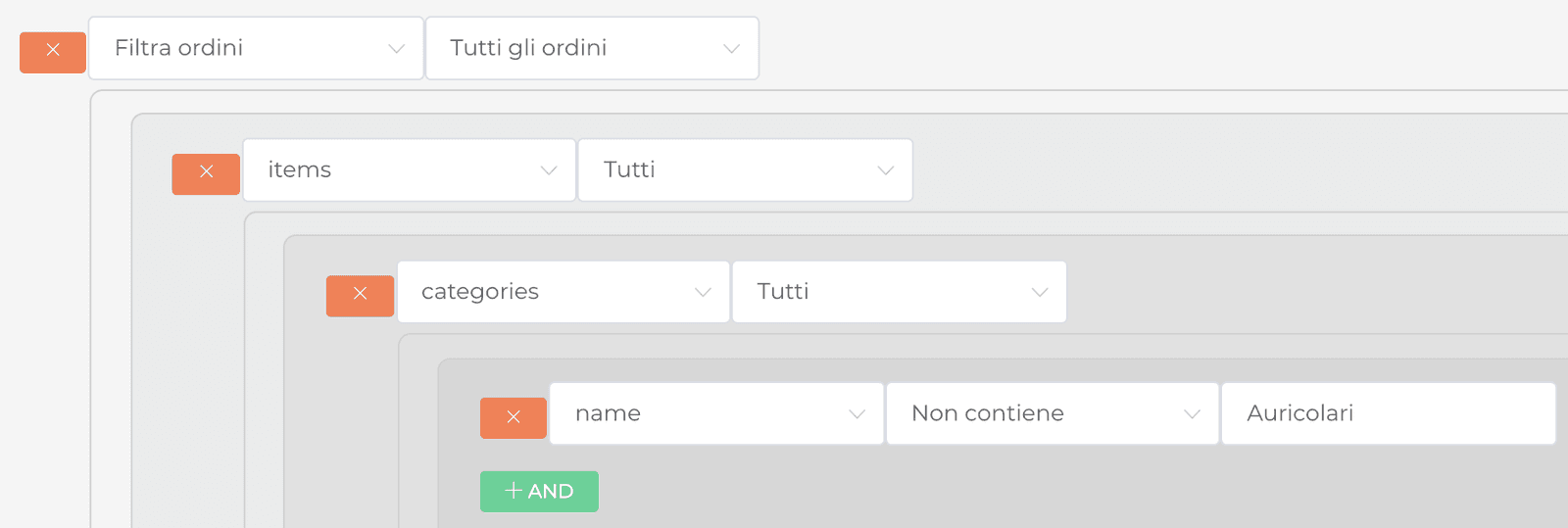
"Has never bought a product of category x"
Another very important use of category data is negation, for example to find all the customers who have never bought from a given category.
Say you want to show a discounted pair of earphones to customers who have ordered before but have never bought earphones:
Conclusions
Segmenting customers by purchase category is perhaps the most effective way to build targeted, high-converting marketing campaigns.
Used the right way, it lets you upsell and cross-sell precisely, matching what your customers really need.
Try it at https://app.rfmcube.com/