
Guide to using Customer and Order additional fields in advanced filters
In many industries, RFM analysis alone isn't enough. Some e-commerce stores, for example, sell product categories so different from one another that clustering customers on Recency, Frequency and Monetary value alone isn't very effective.
To build your marketing segments you may need more information about your customers and the orders they placed.
You may need to know which product category they bought, the brand, the coupons they used, the city they live in, and so on.
That's why Rfmcube lets you import and sync additional fields (also called metafields) from your e-commerce platform.
Additional fields are, in short, all the data that describe your customers, their orders and the individual products they bought.
With this data you can apply advanced filters, which take your segmentation to a much deeper and more detailed level.
Let's look at them in detail ➡️
Customer additional fields
These are all the information your e-commerce store holds about your customers.
The most common ones are: first name, last name, email, shipping province or state, tax code/VAT number, gender, loyalty card points, private customer or business, newsletter subscription, and much more.
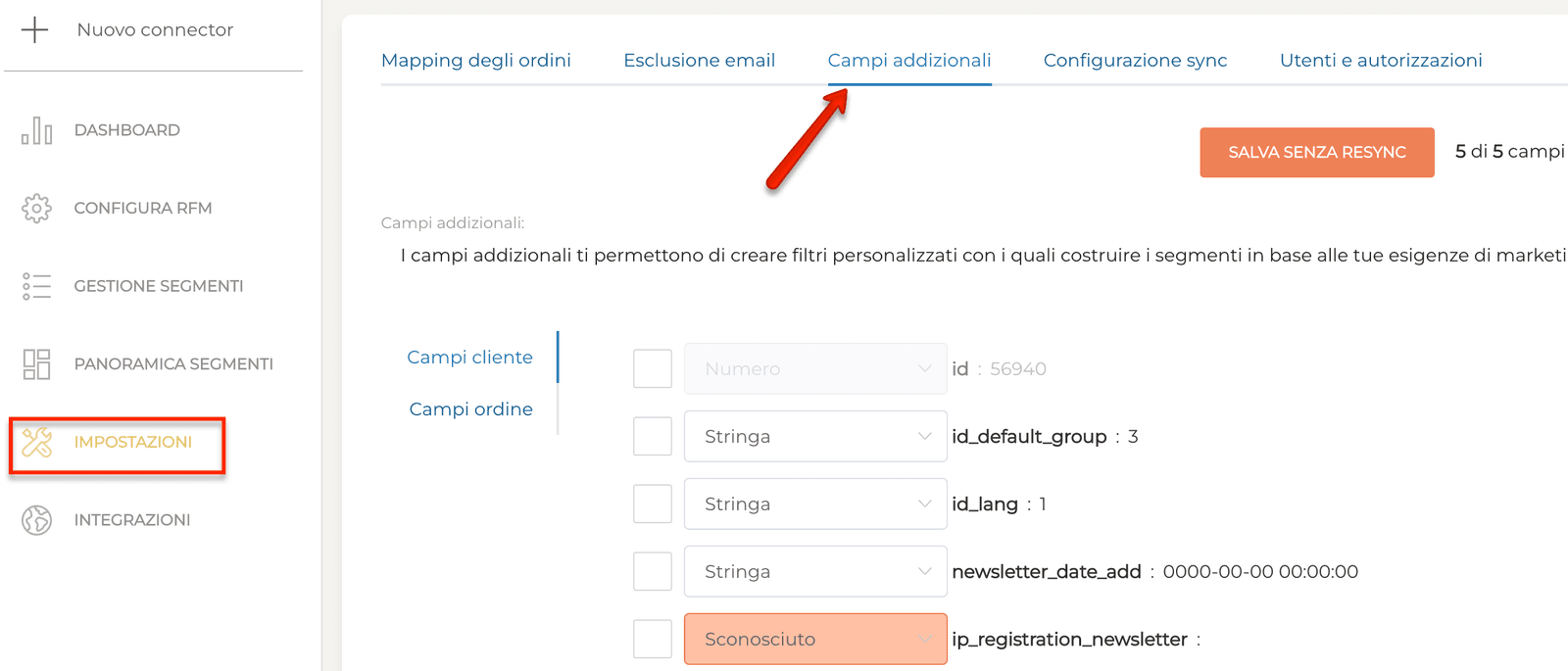
You'll find the full list under Settings > Additional fields.
EXAMPLE: your chain of stores is opening a new shop in Milan.
So you decide to run a marketing campaign for the customers whose shipping address is in Milan.
These customers have already bought from your e-commerce store, so they are the best-targeted audience for your new shop's opening.
The additional field you need to import into Rfmcube is:
- shipping address > City
Once that's done, you can create your advanced filter selecting the customers whose shipping address is Milan.
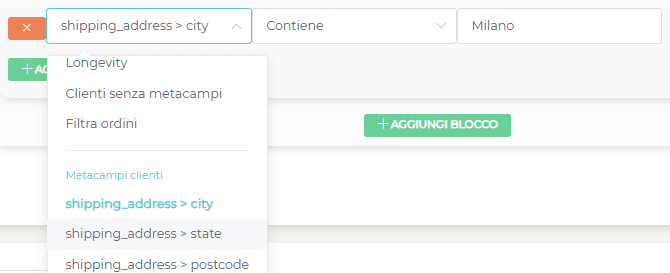
You can use the resulting customer list for a targeted campaign by email, SMS, Facebook and much more.
Order additional fields
These are all the additional order data, as your e-commerce platform describes them.
From a marketing point of view, the most interesting ones describe the products in the order: category, brand, size, gender, material and everything else that describes your products.
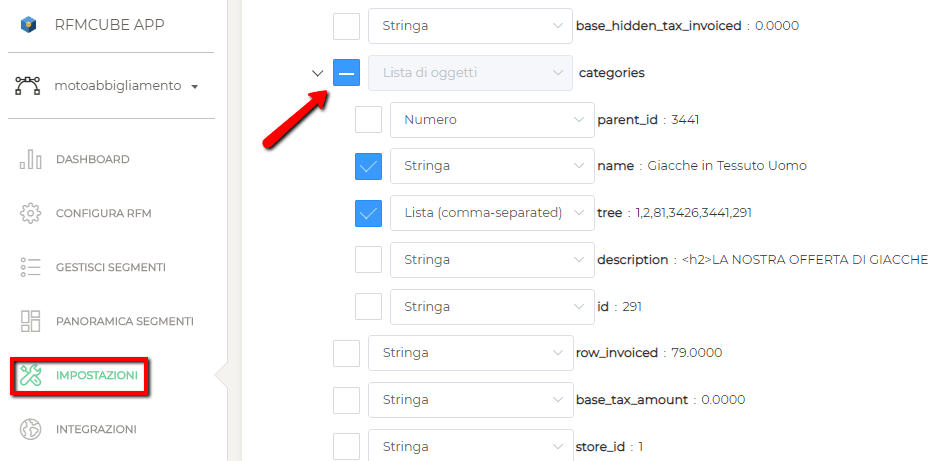
You'll find them under Settings > Additional fields too. In the advanced filters, choose Filter orders to use them.
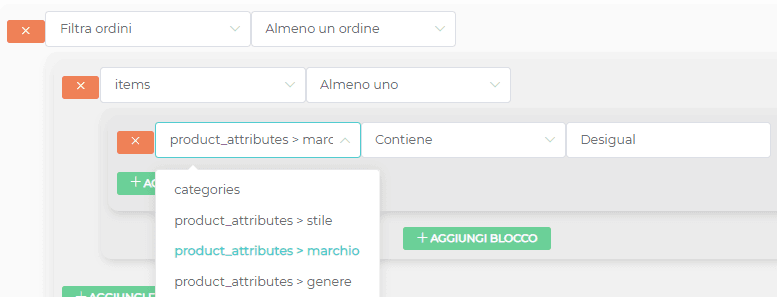
EXAMPLE: for your online clothing store, you decide to run a limited-time offer on Desigual's new women's swimwear collection.
Since you already have other offers running, you want to make the message more relevant by offering the swimwear only to customers who have already bought a women's clothing item from that brand.
In this case you need to import 3 order additional fields into Rfmcube:
- category: it's a clothing item;
- gender: it's a women's item;
- brand: it's made by Desigual.
Unlike customer additional fields, order additional fields are multidimensional: they can be combined in different ways depending on what you're looking for.
In our example the rule reads: customers who placed at least 1 order with at least 1 product whose category is clothing, gender is women and brand is Desigual.
Now suppose you want to narrow the search down.
Besides selecting customers who bought a Desigual women's item, you want to exclude those who have already bought swimwear in the past, to make the offer more effective.
The reason could be that the promotion eats into your margin, so you only want to invest it in customers who have never considered buying from your swimwear department.
So you add this further condition to the advanced filter:
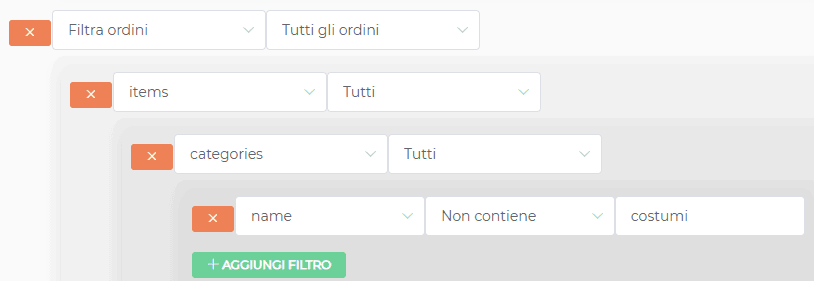
Once your advanced filter is ready (customers who bought at least once from Desigual but have never bought swimwear), you can download the customer list as a CSV file, or sync the segment with your favourite marketing software.
In the example below, the segment has been synced with a list in the email marketing software Brevo (formerly Sendinblue):
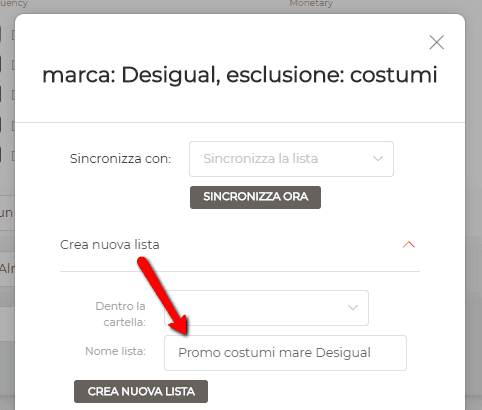
Once the segment is synced, you can send newsletters from Brevo and build Facebook and Google Ads audiences entirely on your own.
See also: